
How to Build a Home Golf Simulator on a Budget (Step-by-Step)
How to Build a Home Golf Simulator on a Budget (Step-by-Step)
About three years ago, I turned half my two-car garage into a golf simulator. My wife thought I’d lost my mind. My buddies thought I’d struck gold. And honestly? After hitting somewhere north of 40,000 balls off my Fiberbuilt mat at midnight on a Tuesday in January, I can tell you — it’s one of the best things I’ve ever built.
But I made every mistake in the book getting here. Wrong projector. Cheap mat that wrecked my wrists. Netting I bought from a soccer supply store that wasn’t rated for golf ball speeds. I’ve done the expensive trial-and-error so you don’t have to.
This guide covers everything you need to build a home golf simulator that actually works — from space requirements to launch monitors to software — across three budget tiers. Whether you’ve got $1,500 or $5,000 to spend, there’s a solid setup waiting for you.

First Things First: Do You Have the Space?
Before you spend a single dollar on components, you need to sort out your space. This is where a lot of people get burned — they buy the gear and then realize their basement ceiling is 8 feet tall or their spare room is 10 feet wide.
The absolute minimum for a functional home golf simulator is 10 feet wide × 12 feet deep × 9 feet tall. And that’s the bare minimum — you’ll want more if you’re swinging a driver comfortably. Here’s the honest breakdown:
- Width: 10 feet gets the job done, but 12–14 feet gives you room to address the ball without worrying about clipping a wall with your backswing. Lefties and big-swing guys especially need that extra width.
- Depth: You need at least 5 feet behind the hitting position for a full swing, then another 7–10 feet in front of you to the screen. Total depth of 12–15 feet is the sweet spot.
- Height: 9 feet is workable for most golfers. If you’re over 6’2″ or tend to stand tall, push for 9.5 to 10 feet. A ball striking your ceiling mid-swing is a bad day.
Garage vs. Basement vs. Spare Room
Garage is the most popular choice — and it’s what I went with. You usually get the ceiling height, the square footage, and you’re not worried about a stray shot damaging the rest of your house. The downside: temperature control. If you live somewhere cold, budget for a space heater or mini-split. Hitting in a 40-degree garage in February with stiff hands is miserable.
Basement offers climate control and privacy, but ceiling height is often the killer. Older homes especially can have 7.5–8 foot ceilings with ducts and beams chewing into that. Measure twice before committing. The good news: basements are quiet, insulated, and usually dark enough for great projector image quality.
Spare room works if the dimensions line up, but you’ll want to protect your floors and walls carefully. A wayward shot in a carpeted bedroom is a different kind of bad day than one in a garage.
The Three Budget Tiers
Here’s how I break down home golf simulator builds based on budget. These aren’t exact figures — prices shift and you can save money buying used — but these are realistic ballparks.
Tier 1: The Budget Build (~$1,500)
This gets you on the simulator. It’s not premium, but it works. You’re playing simulated golf, improving your game, and doing it year-round. At this price point, you’ll make compromises, but the core experience is there.
- Launch monitor: Garmin R10 (~$600)
- Projector: Short-throw budget projector (~$200–$300)
- Impact screen: DIY or entry-level kit (~$150–$250)
- Hitting mat: Mid-grade option (~$150–$250)
- Netting/frame: DIY setup with golf netting (~$150–$200)
- Software: Garmin Golf app (included) or free/cheap option (~$0–$100/yr)
Tier 2: The Mid-Range Build (~$3,000)
This is where most serious sim golfers end up and where I’d honestly point anyone who can swing the budget. You get a noticeably better launch monitor, a real enclosure, and software that makes you want to fire it up every night.
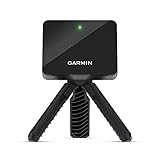
- Work to improve your game at home, indoors or on the driving range with a portable launch monitor .Waterproof : IPX7.Control Method:Application,VoiceWater Resistant: Yes.Club Head speed accuracy : plus/- 3 mph, Ball speed accuracy : plus/- 1 mph, Launch angle accuracy : plus/- 1 degree, Launch direction accuracy : plus/- 1 degree.
- Track key metrics when paired with a compatible smartphone with the Garmin Golf app to help better your shot consistency, including club head speed, ball speed, swing tempo, ball spin, launch angle and more
- Understand your golf strengths and areas for improvement by using training mode, which tracks stats for each club and shows a shot dispersion chart based on estimated ball flight using the Garmin Golf app
- See and analyze your own swing with automatically recorded video clips that include the metrics of that swing when paired with a compatible smartphone with the Garmin Golf app
- With an active subscription and the Garmin Golf app, play virtual rounds on over 42,000 courses around the world and take part in a weekly tournament with scores posted to our global leaderboard

- Launch monitor: Rapsodo MLM2PRO (~$700) or FlightScope Mevo+ (~$1,000)
- Projector: Epson short-throw or BenQ TH671ST (~$500–$700)
- Impact screen + frame: Entry-level enclosure kit (~$500–$800)
- Hitting mat: Fiberbuilt or Country Club Elite (~$350–$500)
- Software: GSPro or E6 Connect (~$150–$250/yr)
Tier 3: The Premium Build ($5,000+)
At this level you’re getting into Skytrak+, GCQuad territory for the launch monitor, a proper SkyTrak enclosure or Carl’s Place custom setup, a high-lumen 4K-capable projector, and full simulator software with online play and course libraries that go 100+ courses deep. This is the setup that makes your golf buddies cancel their club memberships.

- TOUR LEVEL SHOT TRACK ACCURACY — Doppler radar & dual camera setup ensure reliable data on every shot to help you improve faster.
- 15 KEY METRICS CAPTURED — measure spin rate, spin axis, carry distance, club speed, club path, launch angle, and more.
- 45 DAY PREMIUM TRIAL INCLUDED — Unlock simulated courses, 3rd party app integration, target range, impact vision, rapsoo combine, and speed training with your free trial premium membership.
- 30,000+ HOME GOLF SIMULATOR COURSES INCLUDED WITH PREMIUM — play iconic courses or dial in your game with customizable driving range. Multiple tee boxes and game formats for every age or skill level.
- ELITE GOLF SWING TRAINIG AID & LAUNCH MONITOR — capture your swing from any angle to identify patterns, plus view precise club/ball contact in slow motion for deeper insights into your game.
- Launch monitor: SkyTrak+ (~$2,000) or FlightScope Mevo+ ($1,000) with full software
- Projector: Optoma GT1090HDR or BenQ LH720 (~$700–$1,200)
- Full enclosure kit: Carl’s Place, Shop Indoor Golf, or Rain or Shine Golf (~$1,000–$2,500)
- Hitting mat: Fiberbuilt Flight Deck or BirdieBall Fairway (~$500–$700)
- Software: TGC 2019, GSPro, or The Golf Club 2019 (~$200–$500 depending on tier)
- Computer: Dedicated gaming PC if needed (~$600–$1,000)
The Core Components: What You Actually Need
Let’s go component by component. These are the six pillars of any home golf simulator, and understanding each one helps you make smart tradeoffs when you’re working within a budget.
1. Launch Monitor
The launch monitor is the brains of the operation. It tracks your shot data — ball speed, launch angle, spin rate, carry distance — and feeds that to the simulator software. Get this wrong and none of the rest matters.
There are two main technologies: camera-based and radar-based. For home simulator use, radar-based units like the Garmin R10 and FlightScope Mevo+ work better in enclosed spaces because they don’t need a fixed distance behind the ball the way some camera systems do.
Garmin R10 (~$600) — The best entry point right now for budget builds. Connects to the Garmin Golf app (decent simulator experience), and also pairs with third-party software via the API. Accuracy is good enough for meaningful practice, though it occasionally misreads spin on mishits. If you’re budget-focused and want to actually start playing, start here. Check out our full breakdown of the best golf launch monitors under $1,000 for a full comparison.
Rapsodo MLM2PRO (~$700) — Adds camera-based ball tracking on top of radar for better accuracy on spin and club path. Works well with E6 Connect. If you can stretch $100 over the R10, the MLM2PRO is a meaningful step up in simulation quality.
FlightScope Mevo+ (~$1,000–$1,200) — This is the sweet spot for serious sim golfers who don’t want to spend SkyTrak money. The Mevo+ gives you 16 data parameters including spin axis and dynamic loft, pairs with E6 Connect and GSPro, and has strong accuracy on both irons and driver. The Pro Package unlocks full simulator features. If your budget allows, this is where I’d park for Tier 2.
A quick note on placement: radar-based units generally sit behind the ball on a tripod or stand, 6–8 inches off the ground. You’ll need to account for that space when planning your setup.
2. Impact Screen
The impact screen is what you hit the ball into — it catches the shot and displays the projected image. This is not something to cheap out on.
A quality impact screen is made from multiple layers of woven polyester or nylon that absorb the ball’s energy without bouncing it back dangerously. Budget screens tend to sag in the middle after a few months of driver shots, degrade from UV and stress, and create hot spots in the projected image.
Look for screens rated for at least 200 mph ball speed. Top brands include Carl’s Place, The Indoor Golf Shop, and Rain or Shine Golf. A proper 10×10 foot impact screen runs $250–$600 depending on thickness and warranty.
Screen sizing tip: your screen should be at least as wide as your enclosure opening, with a bit of overlap on the sides to mount to your frame. A 10-foot screen in a 10-foot wide enclosure leaves no margin — go 11 or 12 feet wide if you can.
3. Projector
Your projector needs to throw a sharp, bright image onto the screen from a short distance. Standard long-throw projectors don’t work in a sim bay — you’d need 12+ feet of throw distance, which would put the projector right in your swing path. You want a short-throw projector with a throw ratio of 0.6:1 or less.
Key specs to look for:
- Lumens: 3,000+ for a room with any ambient light. 4,000+ if your space gets sunlight. Garages especially need brightness.
- Resolution: 1080p minimum. 4K is nice but not necessary if your budget is tight.
- Throw ratio: Short-throw (0.4:1 to 0.6:1) so you can mount it close to the screen.
- Input lag: Under 30ms. High input lag makes the ball flight animation look delayed from your swing, which is disorienting.
The BenQ TH671ST (~$600–$700) is a go-to recommendation in the sim community — 3,000 lumens, 0.69 throw ratio, 1080p, and low input lag. The Optoma GT1090HDR runs similar money and is slightly brighter. For budget builds, the Epson VS260 can work but you’ll want to kill the lights.
Mount the projector to the ceiling roughly 12–16 feet from the screen (depending on throw ratio) and angle it down slightly. Get a solid ceiling mount — a projector falling mid-round is a nightmare scenario.
4. Hitting Mat
This is where I made my biggest early mistake. I bought a cheap $80 mat from Amazon. Within two months my lead wrist was aching from the impact feedback, and the mat had torn up in the strike zone. Don’t do this.
A quality hitting mat does three things: it feels like real turf underfoot, it has a striking surface that absorbs energy correctly (not bouncing the club back), and it doesn’t punish fat shots by sending a shockwave up your arm.
Top picks:
- Fiberbuilt Flight Deck (~$450–$600): Industry standard. The grass-fiber construction gives realistic turf interaction and forgiving impact feel. Heavy and durable. This is what I run.
- Country Club Elite (~$400–$500): Similar quality to Fiberbuilt, slightly different feel underfoot. Popular with serious sim builders.
- Rukket Tri-Turf (~$150–$200): Good budget option with three surface zones (fairway, rough, fairway). Not as forgiving as Fiberbuilt but a massive step up from the Amazon generics.
Look for a mat that’s at least 5 feet × 5 feet, and ideally includes a tee insert system so you’re not destroying rubber tees with every driver swing.
5. Enclosure / Netting
Your enclosure has two jobs: contain errant shots and give you a frame to mount your screen. You’ve got two paths here — DIY or pre-built kit.
DIY approach: Build a frame from 1.5″ steel conduit or 2×4 lumber and hang golf netting rated for 200+ mph. Netting runs $60–$150 for a 10×10 section. Total DIY cost for a basic frame and net: $150–$300. This works fine but requires some building skill and takes a full afternoon to set up properly.
The critical mistake with DIY netting: don’t use soccer or batting cage netting. Golf ball speeds are different from what those products are engineered for, and the netting can fail on a high-speed mishit. Use net rated specifically for golf.
Pre-built enclosure kits: Companies like Carl’s Place, Shop Indoor Golf, and Rain or Shine Golf sell complete enclosure systems — frame, netting, and impact screen mount — that you assemble with basic tools. Prices range from $500 for a basic 10×10 kit to $2,500+ for a premium 14-foot wide setup with velcro side barriers, ceiling baffle, and a proper screen tensioning system.
The advantage of kit enclosures: they’re designed to work together. The netting alignment, screen tensioning, and frame geometry are engineered as a system, and the result is a cleaner, safer setup than most DIY builds.
6. Computer / iPad
Your device runs the simulator software and handles the image output to the projector. Requirements depend on the software you choose.
For iOS-based options like the Garmin Golf app and some versions of E6 Connect, an iPad (Air or Pro) does the job. For PC-based simulators like GSPro and TGC 2019, you need a Windows machine with a dedicated GPU.
Minimum PC specs for a smooth sim experience:
- GPU: NVIDIA GTX 1660 or better (RTX 3060 for premium software)
- RAM: 16GB
- CPU: Intel i5/i7 or AMD Ryzen 5/7 (8th gen+)
- Storage: SSD, at least 256GB
A refurbished gaming PC from eBay or Best Buy’s open-box section can often get you there for $400–$600. If you’re already running a capable gaming rig, no additional cost here.
Simulator Software: The Experience Layer
The software is where the magic happens — it’s the virtual courses, the ball flight physics, the stats tracking, and the experience that keeps you coming back night after night. Here’s the honest rundown:
E6 Connect
One of the most popular options in home simulator setups. E6 Connect runs on both PC and iOS, has 100+ courses including St. Andrews, Pebble Beach, and TPC Sawgrass, and supports most launch monitors on the market including the Rapsodo MLM2PRO and FlightScope Mevo+. Subscription runs about $200–$400/year depending on the tier. The physics feel realistic, the graphics are solid, and multiplayer mode lets you play online with others. Strong pick for most builds.
GSPro
GSPro has taken the home sim community by storm over the last few years. It’s PC-only, subscription-based (~$150–$250/yr), and has a passionate community that constantly adds free courses — over 200 at this point and growing. The ball physics are excellent, and GSPro Online allows you to play competitive rounds with people across the country. If you’re on a PC, GSPro is hard to beat on value.
TGC 2019 (The Golf Club 2019)
TGC 2019 is a one-time purchase (~$40 on Steam) rather than a subscription, which makes it attractive on a tight budget. It’s dated graphically compared to E6 and GSPro, but the course designer community has built thousands of user-created courses, and the gameplay is solid. Pairs well with FSX Play and some Mevo+ configurations. A legitimate option if you want to avoid recurring software costs.
Awesome Golf
Awesome Golf is iOS-native and designed to work with the Garmin R10. It’s simpler than E6 or GSPro but polished, easy to use, and has a small but growing course library. Good option for iPad-based setups at the budget tier.
Step-by-Step: Building Your Home Golf Simulator
Alright — you’ve got your space scoped and your components selected. Here’s how to actually put it together.
Step 1: Prep Your Space
Clear the area and measure everything twice. Mark the hitting position on the floor (this is where your mat will sit), then measure 10–12 feet forward to where your screen will hang. Note the ceiling height at the hitting position and at the screen position. Look for overhead obstacles — lights, pipes, beams — that might interfere with swing arc or projector mounting.
If you’re in a garage, consider adding rubber floor tiles or a padded surface under your mat for comfort during long sessions. Also think about lighting control — a ceiling light directly above the screen will wash out the projected image. Switch it off or relocate the bulb.
Step 2: Install Your Enclosure Frame
If you’re using a pre-built enclosure kit, follow the manufacturer assembly instructions — they typically take 2–4 hours with one helper. For DIY frames, assemble your conduit or lumber into a freestanding or wall-mounted frame. The key dimensions are: frame width (at least as wide as your screen), frame height (clear of ceiling by at least 6 inches), and frame depth (enough to run netting along the sides).
Anchor the frame to the wall or floor if at all possible. A frame that shifts mid-session is a safety issue.
Step 3: Hang Your Netting and Mount Your Screen
Attach your side and top netting to the frame before mounting the screen. The netting should extend from behind the hitting position all the way to the screen — think of it as creating a contained channel for errant shots. The impact screen mounts at the front of the enclosure, stretched taut and secured with grommets or bungee cords at regular intervals. A screen that sags in the middle will distort your projected image and isn’t safe.
Step 4: Mount Your Projector
Install the ceiling mount directly above the hitting zone or slightly behind it (check your projector’s manual for the optimal throw distance given your screen size). Run your HDMI cable from the projector to your PC or iPad adapter. Power cable should run along the ceiling or wall — don’t let it dangle into the hitting area.
Power on the projector and use the keystone correction to square up the image to your screen. Most short-throw projectors have both horizontal and vertical keystone — take the time to get this right. A skewed or trapezoidal image is distracting after the first 10 minutes.
Step 5: Place Your Hitting Mat
Position the mat at your hitting zone — typically 10–12 feet from the screen face. The mat should sit flat with no curl at the edges (some mats need 24 hours to flatten out after shipping). Install your tee inserts according to the mat manufacturer’s instructions.
Center yourself on the mat relative to the screen. You want the middle of the screen in front of you when you’re in your address position, not offset to one side.
Step 6: Set Up Your Launch Monitor
Position the launch monitor per manufacturer specs. Radar units (R10, Mevo+) typically sit 6–8 inches behind the ball on the target line, angled at a specific height. Camera units have stricter placement requirements. Follow the manual exactly here — a mispositioned launch monitor will give you bad data.
Connect the launch monitor to your PC or iPad via Bluetooth or WiFi. Most units have a companion app to verify the connection and calibrate. Run a few test shots with an iron before switching to driver to confirm readings look reasonable.
Step 7: Install and Configure Software
Install your simulator software and link it to your launch monitor. Most software has a “launch monitor” settings page where you select your device and configure units (yards vs. meters, etc.). Set up your player profile — name, handicap, hand dominance — and run through any calibration the software asks for.
Pick a familiar course for your first round so you can focus on the experience rather than learning an unfamiliar layout. Pebble Beach and St. Andrews are in most libraries for a reason.
Step 8: First Session Checklist
- Projector image is square and fills the screen
- Launch monitor is reading all shots (no blank reads)
- Ball speeds and distances look realistic for your game
- Netting is fully covering the sides — no gaps where a ball could escape
- Mat is flat and tee inserts are secure
- You have enough balls (grab 12–18; you’ll burn through them)
Common Mistakes to Avoid
I’ve made most of these, or watched sim builder forums fill up with people who have. Learn from us.
Buying a Cheap Mat
A $80 Amazon mat will have you nursing wrist issues within a few months of serious use. The impact feedback from a thin mat is punishing, especially on driver swings. Buy once, buy right. The Rukket Tri-Turf is the minimum viable mat. Fiberbuilt is the standard if you can swing it.
Wrong Projector Throw Distance
People buy a standard (long-throw) projector because it’s cheaper, then discover it needs to be 20 feet from the screen to fill the image. That puts it squarely in the hitting zone. Always confirm your projector’s throw ratio before buying and verify it works for your specific screen size and room depth.
Inadequate Netting
Side netting is not optional. A hosel rocket or snap hook off a driver travels at 120–140 mph and hits a wall in milliseconds. If your wall is drywall, it’s damaged. If there’s someone on the other side of it, that’s a serious problem. Run netting all the way from behind the hitting zone to the screen on both sides.
Ceiling Height Optimism
Measure with a tape measure, not your eyes. A lot of people think their garage is 10 feet tall and find out it’s 9’2″ after the beam, HVAC duct, or overhead door rail eats into it. Your driver swing arc may top out at 8.5–9 feet — cut it fine and you’ll clip the ceiling.
Skipping the Computer GPU Check
GSPro and E6 Connect will run on weak hardware but will look terrible and possibly lag. A lag between your swing and the ball flight animation breaks the immersion completely and makes the session frustrating. If your PC can’t handle the software at playable settings, either upgrade the GPU or pick a lighter software option.
Projector Keystone Overcorrection
Digital keystone correction reduces image resolution. If you’re correcting more than 15–20 degrees, reposition the projector physically rather than correcting digitally. Ceiling mount adjustability helps here.
Ongoing Costs to Budget For
The upfront build cost is what everyone focuses on, but the ongoing costs add up over time. Here’s what to expect:
- Software subscriptions: $100–$400/year depending on your platform choice. GSPro on the lower end, E6 Connect Platinum on the higher end. Budget $200/year as a realistic average.
- Golf balls: Even practice balls take a beating off an impact screen. Expect to rotate through a set every few months. The best golf balls for distance aren’t necessarily your best choice here — buy value-tier balls for sim use and save your premium balls for the course.
- Mat replacement: A quality mat lasts 2–4 years with regular use before the strike zone wears down. Budget $400–$600 every few years.
- Tees and tee inserts: Minor cost, but they wear down. Budget $20–$50/year.
- Screen replacement: A quality screen should last 5+ years, but a severe mishit can damage it. Minor repairs are often DIY-able with patch kits from the manufacturer.
- Electricity: Running a projector, PC, space heater (if in garage), and lights adds up. Estimate $20–$50/month extra on your utility bill.
Total ongoing cost: roughly $400–$700/year when you factor everything in.
Is It Worth It? The Cost-Per-Round Math
Here’s the math I ran before I built mine, and it’s what I share with every friend who asks.
Let’s say you build a solid Tier 2 setup for $3,000 and it lasts 5 years (conservative). That’s $600/year in amortized build cost, plus ~$500/year in ongoing costs. Total: roughly $1,100/year.
Now: how many rounds of golf do you play in winter? If you’re in Chicago, Minnesota, or anywhere north of the Mason-Dixon, you’re probably looking at 4–5 months where outdoor golf is difficult or impossible. That’s the simulator’s market — those months don’t disappear, they move inside.
If green fees in your area average $60–$80 per round (cart included), and you play 2 rounds per month on the simulator for 5 months, that’s 10 rounds you’re not paying for outside: $600–$800 in saved green fees, just in winter.
But here’s the real value that doesn’t show up in the math: off-season practice that actually translates to the course. Hitting 150 balls on a mat with a launch monitor showing your spin rate and path gives you data and reps you’d never get from a driving range or a casual summer round. A lot of sim golfers drop their handicap noticeably in the 12 months after building a setup because they’re logging more quality practice hours than they ever have.
If you’re playing 3 rounds a week on the sim during winter (which is easy to do when it’s set up in your garage), the per-round cost falls to cents. The simulator pays for itself in a few seasons for serious players.
Need to dial in your equipment before you start? Our guide to the best golf drivers in 2026 and our golf shaft flex guide can help you make sure the clubs you’re hitting on the sim are the right fit. And if you’re looking to level up your training beyond the simulator, our picks for the best golf training aids in 2026 are a good complement.
DIY vs. Pre-Built: Quick Summary
To wrap up the enclosure question with a clean answer:
| Factor | DIY Build | Pre-Built Kit |
|---|---|---|
| Cost | $150–$400 | $500–$2,500 |
| Time to build | Full weekend | Half day |
| Customizability | High | Medium |
| Safety engineering | DIY responsibility | Manufacturer tested |
| Looks | Depends on skills | Clean, professional |
| Best for | Budget builds, handy people | Most builders |
If you’ve got the time, tools, and confidence, DIY saves real money. If you’d rather spend a Saturday afternoon assembling rather than building from scratch, a kit is worth the premium. Either way, you end up with a working sim bay.
Final Thoughts
Building a home golf simulator is one of those projects where the planning feels intimidating but the execution is more straightforward than it looks. Start with your space, pick a budget tier, and build the component list from there. Don’t try to DIY the mat or the netting — those are the two places budget cuts cost you real money down the line.
The first time you stripe a 7-iron and watch it sail down the 18th at Pebble Beach at 11pm on a Thursday, you’ll understand why so many golfers say building their sim was the best golf investment they ever made. Mine paid for itself three winters ago. I’ve stopped counting.
Now go build your setup. And if you need help picking your launch monitor, the best launch monitors under $1,000 guide is the right next read.